
How do I add my opening times to my Listing?
To add your opening times to your business listing, you will see a section on the page called “Work Hours”. In this section, you can add your opening times. This works using a 24-hour clock, and you can add a number of different times per day using the preset opening and closing times for either 00, 15, 30 or 45 minutes per hour.
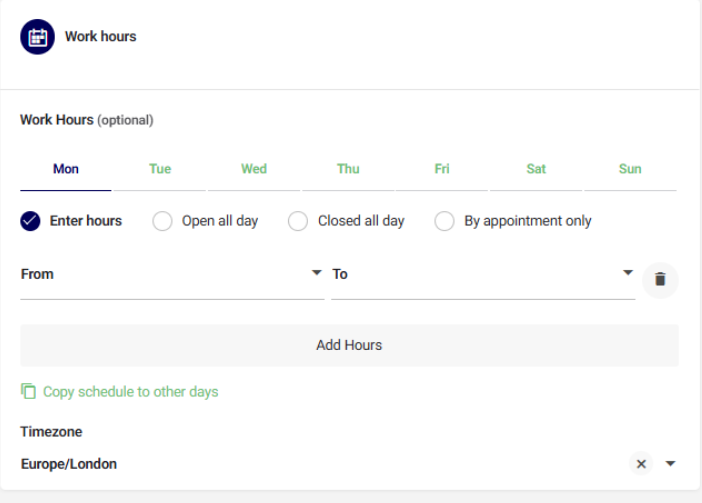
You can choose to enter the hours per day, open all day (24 hours), Closed or state if you are open for appointments only.
Step 1. Click on the day you want to add the hours.
Step 2. Click on the “From” box and choose the time you open (for example “09.00”) If you have different times per day, for example, you close for lunch, complete both this and step 3 first and then click “Add hours” to add another set of times.
Step 3. Click on the “To” box and choose the time you close (for example “18.00”)
Step 4. If you want the same hours to repeat for different days, click on “Copy schedule to other days”
Step 5. Select which days you want the same hours to show. (If they are the same throughout the whole week, click on “All”.
Step 6. Click on “Copy all days” text and then the confirm box which will appear on the screen.
Step 7. Complete the information you require for all other days, and do not forget to save once completed
HINT: If you have a few different times through the week and weekend, you can use the copy schedule for all days, then click on the days you want to amend for slightly different times or to say you are closed.